RGB is for screens. CMYK is for print. But the real risk is not mixing up the definitions. It is sending a PDF that still contains RGB images or objects you did not catch. This guide explains the difference, shows what can go wrong on paper, and walks through how to check and fix the file before you upload it.
- Detected
- RGB
- Required
- CMYK (FOGRA39)
- Where
- Pages 1, 3, 5
This file is RGB. Your printer asked for FOGRA39. Re-export from your design tool with that destination profile.
PrintPress flags RGB elements by page, with the exact values detected and required.
The quick answer
Use CMYK when sending files to a professional printer.
RGB works well during design, especially in tools that default to screen color. But before a job goes to press, the exported PDF should be checked for RGB elements and converted correctly for print. If your printed colors came out dull or different from what you expected, RGB content in the final PDF is one likely cause.
Quick PDF checklist before you send to print
- Open the final PDF in Acrobat Pro and check the output preview
- Confirm the file is using a CMYK output workflow
- Check that no RGB images or objects remain in the document
- Make sure you exported with a print preset such as PDF/X-1a or PDF/X-4
- Confirm the color profile matches your printer's spec
- Re-export from the source file if anything fails
Do not rely on the working file alone. Check the PDF the printer will actually receive.
CMYK vs RGB for printing: what is the difference?
RGB and CMYK create color in different ways.
RGB uses light. Screens mix red, green, and blue to display color.
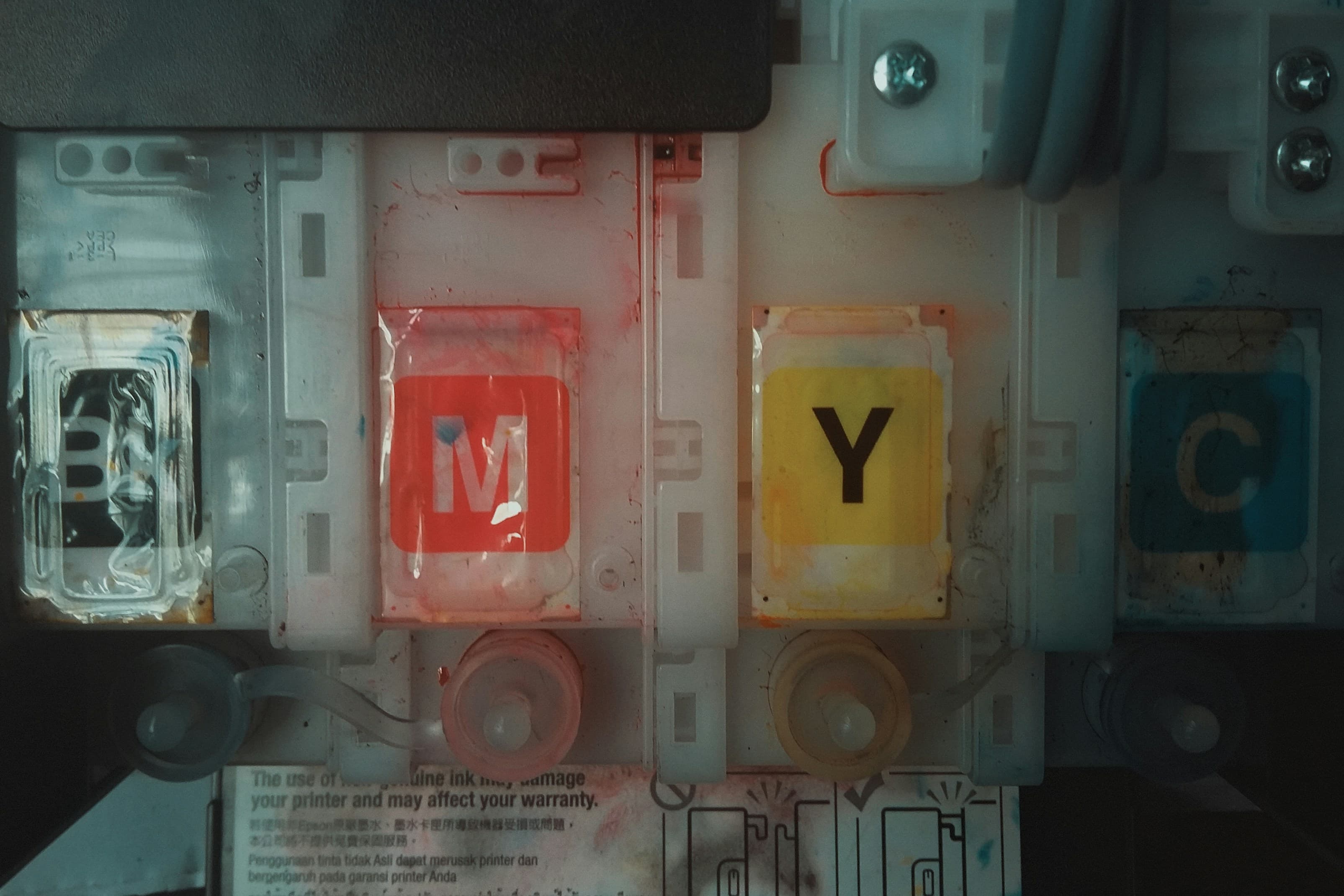
CMYK uses ink. Printing presses lay down cyan, magenta, yellow, and black on paper.
These two systems do not produce the same range of color. RGB can show colors that CMYK cannot reproduce on paper. Bright greens, intense blues, and neon tones often look strong on screen but lose intensity in print.
That is why the difference matters. If an RGB file is converted too late, or converted with the wrong profile, the printed result may look flatter or shifted.
Why do printed colors look different from the screen?
You approved the design on a monitor, then the print came back wrong. Usually that happens because the screen and the press are not showing color in the same way.
Your monitor displays RGB with a wider color range than print can reproduce. If the printer receives RGB content, their system may convert it to CMYK using their own setup. That means the conversion happens outside your control.
Common shifts include:
- Bright reds turning more orange or brick-like
- Strong blues shifting toward purple
- Vivid greens losing saturation
- Neon colors becoming flat
- Black elements printing softer or muddier than expected
This is not always a printer mistake. It is often the result of a late color conversion.
When to use RGB vs CMYK
Use RGB when:
- You are designing for screens
- You are working on web graphics, social posts, or digital ads
- Your design tool defaults to RGB and you are still in the creative stage
Use CMYK when:
- You are preparing a file for professional printing
- You are exporting the final PDF for press
- Your printer has given you a specific print profile or PDF spec
The working file can be RGB during design, but the final print PDF should be checked as a print file, not assumed to be correct because the source document looked correct.
Can a CMYK document still export a PDF with RGB elements?
Yes. This is one of the main reasons designers get caught out.
A document can be set up for CMYK and still export a PDF that contains RGB images, graphics, effects, or embedded assets. That is common when files include placed images, copied graphics, or content from tools that do not support CMYK cleanly.
So the question is not only: "Is my document CMYK?"
The better question is: "Does my final PDF still contain RGB objects?"
That is what the printer sees.
What happens if your PDF still has RGB content?
If a print shop catches RGB in the file, they will usually do one of three things: convert it on their side, reject the file and ask for a correction, or charge you to fix it.
If the file goes through with RGB content, the print result may not match what you approved.
Common symptoms
Dull or flat colors. Highly saturated RGB colors get pulled back to what ink can reproduce. Brand colors can lose punch.
Unexpected color shifts. Blues, reds, and skin tones can move in ways you did not expect.
Inconsistent pages. Some pages look fine, others do not. That often means the PDF contains a mix of CMYK and RGB content, and the conversion treated each differently.
If that sounds like your last print job, checking the final PDF for RGB is a sensible first step.
How to check if a PDF has RGB elements
In Acrobat Pro
Go to Print Production, then Output Preview. Use the simulation profile that matches your printer's CMYK profile. Review the separations and inspect the document. You can also run Preflight and search for checks related to RGB objects. That will flag every RGB element in the document with page numbers.
If you do not have Acrobat Pro
Basic PDF viewers often do not show object-level color information. They may display only general file properties, which is not enough for a reliable print check.
PrintPress can scan each page, flag RGB content, and show where it appears in the file. That is useful when you need a quick answer before sending a job to print, or when you are trying to work out why a printed job came back wrong.
Check your PDF for RGB elements
Check my PDFHow to fix RGB files for print
Do the fix in the source file when possible. Editing color after export can create new issues. Correct the original file, export again, then recheck the PDF.
- Go to Edit, then Convert to Profile
- Choose the CMYK profile your printer requested
- Export via File, Export, PDF (Print)
- Use a print preset such as PDF/X-4
- In the Output tab, set Color Conversion to Convert to Destination and select the same profile
- Go to File, Document Color Mode, CMYK Color
- Save as Adobe PDF using a PDF/X-4 preset
- In Output settings, set Color Conversion to Convert to Destination (Preserve Numbers)
- Select your printer's CMYK profile
- Figma does not support CMYK natively. Export the layout as PDF
- Open in Acrobat Pro, go to Print Production, Convert Colors
- Apply your printer's CMYK profile to all objects and all pages
- Save a new version and recheck the converted PDF before sending
- Canva Pro: Share, Download, PDF Print, enable the CMYK option
- Canva Free exports RGB only. Download the PDF
- Convert in Acrobat Pro using the same process as Figma
How to check the right file before sending to print
Checking the working document is useful, but it does not replace checking the exported PDF. The printer is not printing your InDesign file or Canva project. They are printing the PDF you upload.
Your final check should always happen on the exported file. That is the safest place to catch RGB images that slipped through, mixed color content across pages, and export settings that did not behave as expected.
Before you send a PDF to print, run this checklist
- Confirm the PDF is built for print, not screen use
- Confirm the output profile matches the printer's spec
- Check that no RGB elements remain
- Make sure all placed images are suitable for print
- Verify the export used a print preset
- Inspect the final PDF, not just the source file
- If the job came from Figma or Canva, do an extra check after export
If you want to check that without doing a manual page-by-page review, PrintPress can scan the file for you and flag the pages that still need attention. It fits best as a final pass before upload, especially when the file came from Figma, Canva, or a mixed asset workflow.
CMYK does not guarantee a perfect print
CMYK removes one major source of avoidable color problems. It does not guarantee that print will match your screen exactly.
Paper, press calibration, ink limits, and the chosen profile still affect the result. If the job is color critical, soft-proof with your printer's profile and ask for a physical proof before the full run.
What CMYK does give you is control. You are deciding how the conversion happens instead of leaving it to an automated step later.
Before you send
Check the final PDF, not just the source file. A document can look fine in your design tool and still contain RGB content after export.
If you want a simpler final check, PrintPress can scan the PDF page by page, flag RGB issues, and show what still needs attention before upload.
Check your PDF now, free during beta
Check my PDFFrequently asked questions
- Is RGB or CMYK better for printing?
- CMYK is the right choice for professional print output. RGB is designed for screens, and sending RGB to press means the printer may convert it in ways you did not approve.
- Can a printer use an RGB file?
- Most printers can use an RGB file, but they will usually convert it to CMYK. That conversion can shift colors, and some print shops may reject RGB files outright.
- Why did my printed colors come out dull or different?
- A common cause is RGB content being converted to CMYK at the print shop. Bright RGB colors do not always have an exact CMYK match, so the printed result can look duller or shifted.
- Does converting RGB to CMYK always fix the problem?
- It removes the uncertainty of an uncontrolled conversion, but it does not guarantee a perfect match to your screen. Paper, press calibration, and the chosen color profile still affect the final result.
- Can a PDF contain both RGB and CMYK elements?
- Yes. A document can be set up in CMYK and still export a PDF that contains RGB images, graphics, or effects. That is one reason printed pages can look inconsistent.
- How do I know if my PDF still has RGB objects?
- Open the PDF in Acrobat Pro and use Output Preview or Preflight under Print Production. These checks identify RGB content and show which pages contain it.
- Should I design in RGB or CMYK from the start?
- Either can work during design. What matters most is checking the exported PDF before sending it to print.
- How do I fix RGB images in InDesign?
- Use Convert to Profile to set the correct CMYK destination in the working file, then export with a PDF/X-4 preset and apply the correct color conversion in the output settings.
- How do I export a print-ready PDF from Canva or Figma?
- Canva Pro includes a PDF Print export path with CMYK support. Figma does not support CMYK directly, so the exported PDF usually needs a color conversion step afterward in Acrobat Pro.
- If my file is CMYK, can colors still print differently?
- Yes. CMYK reduces the risk of uncontrolled conversion, but paper stock, ink density, press calibration, and the selected color profile still affect the printed result.